
How to add a project in Screpy
Add a website to Screpy, choose the correct domain and crawl settings, allow crawler access, and fix project setup errors.
A Screpy project connects one public website with its crawl history, SEO findings, performance data, search visibility, and reports. Choose the final website address carefully so future analyses stay comparable.
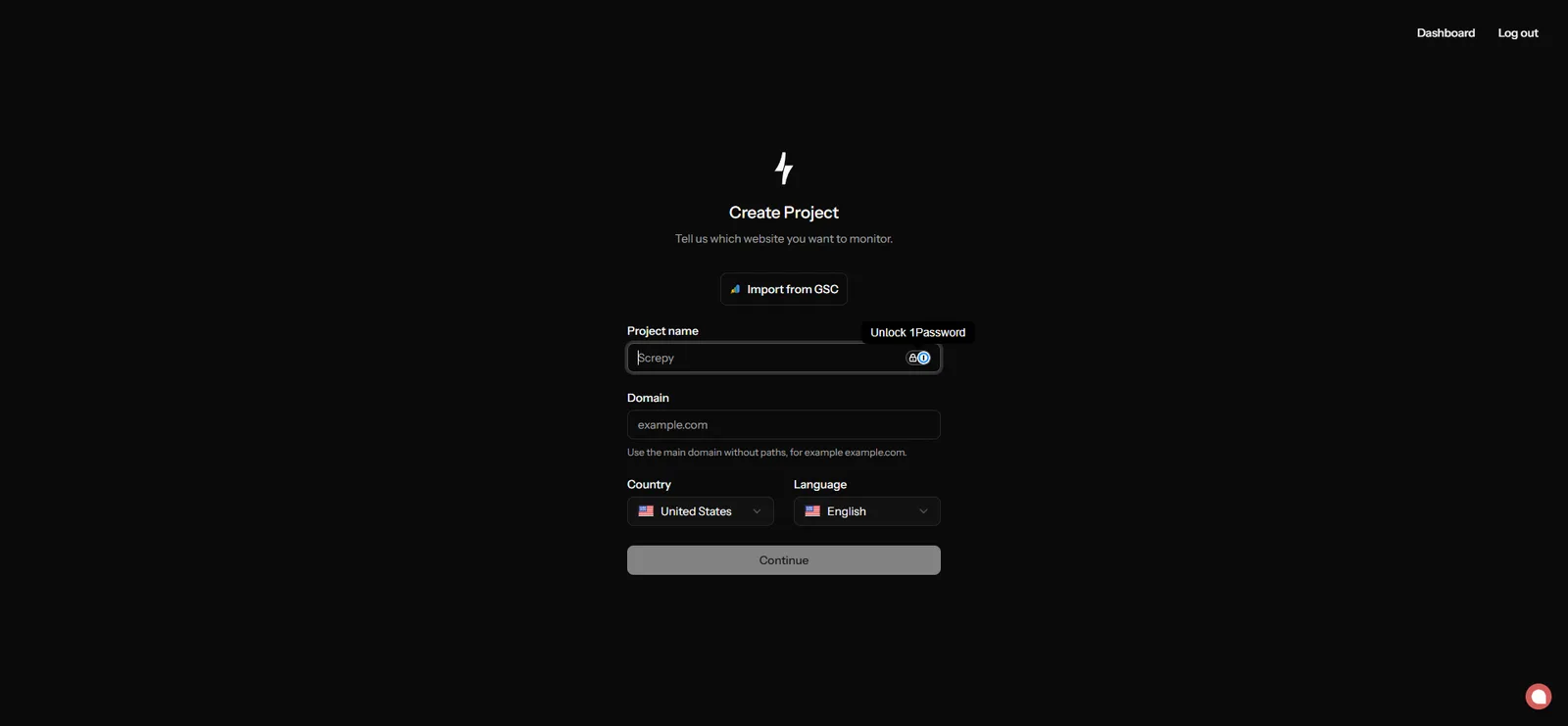
Prepare access before creating the project
Allow crawler IP 5.75.247.29 in every firewall, WAF, hosting security tool, and security plugin. Make sure robots.txt allows ScrepyBot. Complete the website analysis checklist first.
Before you add the website
- Use the public HTTPS address that visitors and search engines should reach.
- Decide whether the canonical host uses
wwwor the root domain. - Add a subdomain separately when it is genuinely a separate website.
- Do not enter an article, category, login, preview, or admin URL as the project domain.
- Confirm that your plan has space for another project and the required crawl capacity.
- Remove maintenance mode, CAPTCHA, and login requirements from pages you want analyzed.
Create the Screpy project
Open Create Project
Start from the project selector or the setup screen. If this is your first project, Screpy opens the setup flow automatically.
Enter the project identity
Add a recognizable project name and the final public domain. Choose the primary country and language used for reporting and search context.
Choose the first crawl scope
Select Max URLs and Depth that cover the important public sections. Keep JavaScript rendering off unless essential content or navigation is generated only after scripts run.
Confirm crawler access
Copy 5.75.247.29 from the setup screen into every relevant allowlist. Confirm that ScrepyBot is permitted in the public robots.txt file.
Finish setup
Submit the project once. Screpy creates the project and starts its initial website analysis. Leave the settings unchanged until you can inspect the first completed result.
Choose an initial crawl scope
| Setting | What it controls | Good first decision |
|---|---|---|
| Max URLs | Maximum number of URLs stored in the crawl. | Select enough capacity for the important public site, within your plan. |
| Depth | Number of link levels Screpy follows from the starting page. | Use a depth that reaches important categories without exploring endless URL paths. |
| JavaScript | Renders client-side content before analysis. | Enable only when meaningful content or navigation is absent from initial HTML. |
| Follow links | Allows discovery through page links. | Keep enabled for normal site discovery. |
You can refine these settings later in Project settings. Access problems must be fixed before increasing crawl scope.
If project creation does not finish
Check for a visible domain or project error, confirm the domain is publicly reachable, and avoid repeated submissions. If the project already appears in the project selector, open it instead of creating a duplicate.
Follow the crawler firewall guide. Allow 5.75.247.29, remove automated-traffic challenges, verify the real HTML response, and submit again only after the access rule is active.
Enter the final public hostname reached after normal redirects. Check HTTPS, www, subdomain, and trailing path choices. Resolve redirect loops before creating the project.
Check the project allowance in plan usage and remove only projects you no longer need. Deleting a project removes it from normal workspace use, so confirm the target first.
Open the project and check its crawl status. Confirm Website Audit is enabled, no other crawl is running, and access requirements pass. Then use crawl troubleshooting.
After the project is created
The initial analysis runs in the background. Page, link, image, and issue counts can change until it completes. Continue with Run your first crawl, then use Fix crawl problems if the result is blocked or incomplete.
Configure robots.txt for the Screpy crawler
Allow ScrepyBot in robots.txt, fix blocked website analyses, and understand conflicting User-agent, Allow, and Disallow rules.
Run your first Screpy website crawl
Start and understand your first Screpy website analysis, choose crawler settings, follow progress, and fix incomplete crawl results.