HomeTasks

Tasks

How Can I Do Image Size Responsive?

In order for images to be responsive, you can choose the following methods:

Using width property

You can first use the width property. When you choose this, you will prefer the height to be automatically adjusted based on the device used or other responsive requirements. In this way, the visual will be scaled to be responsive and presented to the user in this way. You can use the following code for this

img {
  width: 100%;
  height: auto;
}

We would like to tell you that when you use the code above, the image will not remain at its original size. That is, it may become smaller or larger. In this case, using max-width is seen by many as a “better solution”.

Using max-width property

Setting the value of max-width: 100px percent writes new rules for generating a responsive display. If the image to be rescaled to be responsive will be much larger than the original, this code prevents this. But the image still has the ability to be smaller. Use the code below for this:

img {
  max-width: 100%;
  height: auto;
}

Srcset to improve loading time

If you want to improve the loading time of the image on your web page, you can make a change to the page width in order to increase the speed on mobile. Srcset, which is an extremely good option for use in modern search engines, do exactly that. Combine the srcset command with the <picture> tag. Here is an example:

<picture>
  <source media="(max-width: 799px)" srcset="elva-480w.jpg">
  <source media="(min-width: 800px)" srcset="elva-800w.jpg">
  <img src="elva-800w.jpg">
</picture>

You can easily load smaller images on your web page for your mobile visitors by using scrcet

Object-fit both for images and videos

It is a very popular code that allows any visual or video to easily fit into its container. When you use this, you can choose to preserve the aspect ratio, or you can stretch and resize as many images as you like.

Here is an example for object-fit code:

.myImg {
  object-fit: cover;
  width: 320px;
  height: 180px;
}

object-fit is an extremely practical code, but it has a minor drawback. This code may not work in Internet Explorer and older versions of Safari.
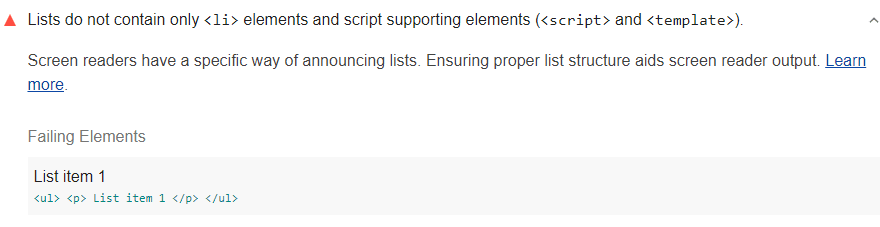
Google Lighthouse generates a warning when it sees components that should not be in list elements. As follows:

Lists do not contain only <li> elements and script supporting elements

How to pass the audit? – Creating Correctly Structured Lists

It is extremely important that you can restructure the lists within the framework of the warning you received from Google Lighthouse. For this, you need to remove all the components that are in the list elements but should not be there. Check both ordered and unordered lists. If there are elements other than <li>, <script> or <template> components among the elements found here, remove all of them.

When a valid list structure is examined, you can see that the <ul> and <ol> elements are also included as the parent elements of the <li> element. These also do not spoil the valid view. However, all components other than this will spoil the valid structure and need to be fixed. 

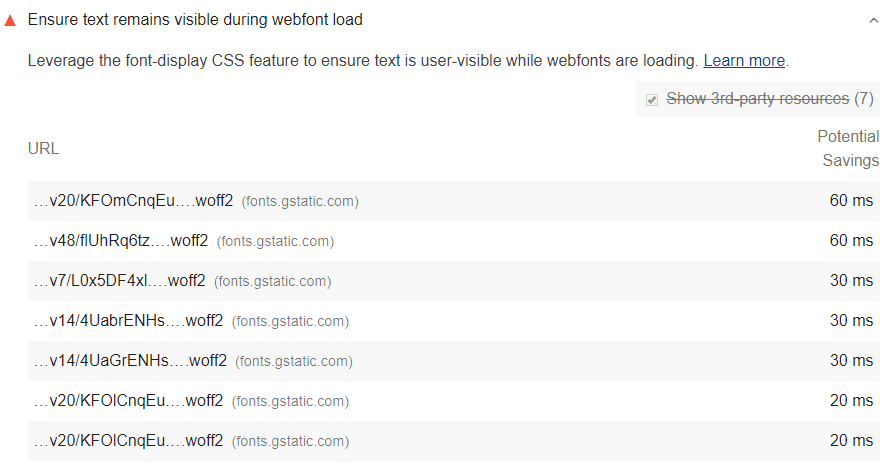
Google Lighthouse notifies the user of the situation by flagging the relevant page if a text is invisible during the font-display process. As follows: 

Text should remain during webfont load

How to pass the audit? – Showing the invisible text 

In order to prevent the text from becoming invisible during the function loading process of a web page, you can assign a temporary font to that text to display in such cases. When you do this, the easy to install temporary and basic font will increase the user’s experience. To do this, you need to add font-display: swap in @font-face style. Check out the example below:

@font-face {
  font-family: 'Pacifico';
  font-style: normal;
  font-weight: 400;
  src: local('Pacifico Regular'), local('Pacifico-Regular'), 		       url(https://fonts.gstatic.com/s/pacifico/v12/FwZY7-Qmy14u9lezJ-6H6MmBp0u-.woff2) format('woff2');
  font-display: swap;
}

Font display API is a system that determines how a font will appear on your web page. Thanks to this system, the basic font is used while loading. With the installation of the custom font, the system automatically turns to it.

Preload web fonts

You can use <link rel = "preload"> to use font files that can be loaded early on your web page. 

Google Fonts

You can use this font by adding a parameter to the end of the Google font URL. The parameter to be added is &display = swap. Here is an example:

<link href="https://fonts.googleapis.com/css?family=Roboto:400,700&display=swap" rel="stylesheet">

Having browser support 

A little note: Not all browsers may support font-display. In such a case, you need to use a few additional methods to solve the text invisible problem. What exactly do you have to do? For this, you need to reduce the flash in invisible text codelab.

You will be warned in such a situation while using the Google DevTools console. This warning is as follows:

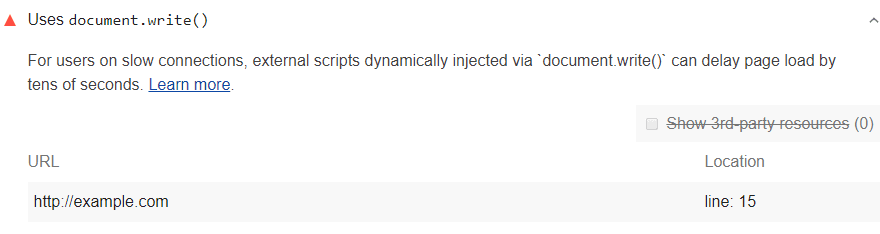
[Violation] Avoid using document.write().

Firefox DevTools provides similar feedback:

An unbalanced tree was written using document.write() causing
data from the network to be reparsed.

When Google Lighthouse encounters this situation, it flags the page in question:

Uses document.write()

Lighthouse also removes the warning if different commands are used to provide the same function instead of such a command.

How to pass the audit? – Avoiding document.write()

You need to delete all document.write () snippets in HTML code. You can do the same by using the asynchronous loading function instead.

Lighthouse flags the web page when it encounters such a situation:

No <meta name="viewport"> Tag with Width or Initial-scale

The following situations encountered as a result of the examination may cause this:

  1. The <meta name = "viewport"> tag in the title field of the document,
  2. Viewport meta tag seen with the content attribute,
  3. The value that the content attribute has should contain width = text.

A quick note: If the width is equal to the width of the device, Lighthouse may not include it in the audit. Also, whether it is an initial-scale key-value pair or not is not included in the audit by Lighthouse. However, both should be on your website.

How to pass the audit – Adding viewport meta tag

In order to pass through the audit, the viewport <meta> tag must be added to the <head> tag of your page. Also, this tag must be supported with the correct key-value pairs. See:

<!DOCTYPE html>
<html lang="en">
  <head>
    …
    <meta name="viewport" content="width=device-width, initial-scale=1">
    …
  </head>
  …

So why are key-value pair options important?

  1. Because they ensure that the width of the view area is adjusted according to the device.
  2. Also, if initial-scale = 1, the user will see the initial zoom value when visiting the page.

Google Lighthouse examines HTTP status codes to detect this problem. Scanning for error codes returning 400s and 500s, the system flags them and generates a warning. This warning appears as follows:

Unsuccessful HTTP Status Code

How to pass the audit? – Recovering unsuccessful HTTP status code

If you see this warning, you should make sure you have search engines crawling your page so you can pass this audit. It is extremely important that your pages shown as 404 or your pages with other error codes are not shown in SERP.

To achieve this, you may prefer to first browse the documentation of the hosting provider or the server you own. Here’s what the server should do:

  1. Returning a status code in the 200s (for valid URLs and for all of them)
  2. Returning a status code in 300s for a resource (one that has moved to another URL)

If you are using pages from Github for single-page applications, what you need to do is to provide valid content along with the 404 code.

Let’s give another note: If you are using single-page applications, it can sometimes take more effort to fix errors in HTTP codes. Therefore, you may need additional ideas to fix the 404s. Do not forget to take a look at the other content we have created to fix 404 errors.

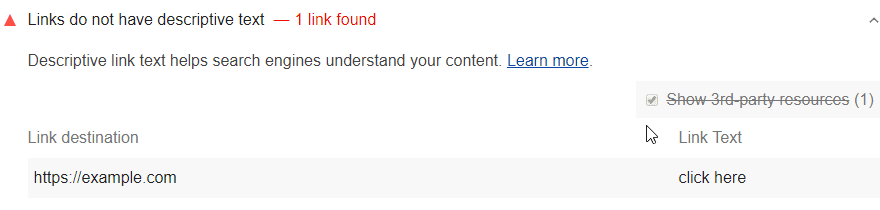
Google Lighthouse enables links that do not contain descriptive text to be flagged. Here is an example:

Descriptive Texts

Generally, the following are flagged among generic link texts:

  1. click here
  2. start
  3. click this
  4. go
  5. right here
  6. more
  7. learn more
  8. here
  9. this

How to pass the audit? – Adding descriptive texts to the links

It is extremely valuable to use texts that explain the purpose and properties of the links. Therefore, instead of texts such as “click here”, it is necessary to link to words that specifically indicate where the link will take. For example, we want you to review the do and don’t examples below.

<p>To see all of our basketball videos, <a href="videos.html">click here</a>.</p>

What you should not do is here. In there, the link is on the ‘’click here’’: 

<p>Check out all of our <a href="videos.html">basketball videos</a>.</p>

What you should do is to give links to ‘’basketball videos’’, not to ‘’click here’’ text

  1. Create a text adhering to the topic.
  2. Don’t try to use the URL of the page in question as descriptive text, it wouldn’t be self-explanatory.
  3. Find a short description. Terse.
  4. Strengthen your page authority by creating internal links.

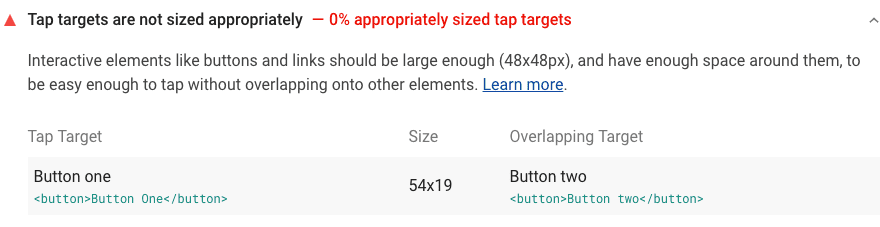
Google Lighthouse will scan, find, and flag the targets too small or not visible. They also flag ones are not separated. Check the image:

Tap Targets

So which tap targets are Lighthouse flags? Let’s examine now:

  1. If tap targets are less than 48 x 48 px, Lighthouse reports this.
  2. If the tap targets are closer to each other than 8px, Lighthouse reports this.
  3. If tap targets overlap with each other, Lighthouse reports this.

How to pass the audit? – Fixing the tap targets

Follow the two steps below:

Step 1: Try to increase smaller tap targets. If you use 48 x 48 px, we are sure that you will surely succeed in passing the audit. But be careful not to make them too big.

Step 2: Use various code tools such as margin to move the tap targets close to each other apart.

Let’s see a caution: Are you building a very complex desktop application? So okay, using multiple access keys is understandable. But if this is not the case, make sure to edit the access key by following the facts below:

  1. Note that not all browsers support your access keys.
  2. The functions of the access keys may not be the same for every browser or device. This may cause confusion.
  3. Users who are not aware of access keys can run functions they do not want.

Lighthouse Detect the Audit

When Lighthouse detects such a situation, the access keys are flagged. Here is an example:

[accesskey] Values are not Unique

Let’s take a look at a code sample. You can see that the two different links below contain the letter G in the access keys. This can create a problem.

<a href="google.com" accesskey="g">Link to Google</a>
<a href="github.com" accesskey="g">Link to GitHub</a>

How to pass the audit? – Fixing Duplicated Access Keys

What you have to do is assign a value that is completely unique for each access key. For example, take a look at the code below:

<a href="google.com" accesskey="g">Link to Google</a>
<a href="github.com" accesskey="h">Link to GitHub</a>

If the code with the yellow sign is changed, there will be no conflict.

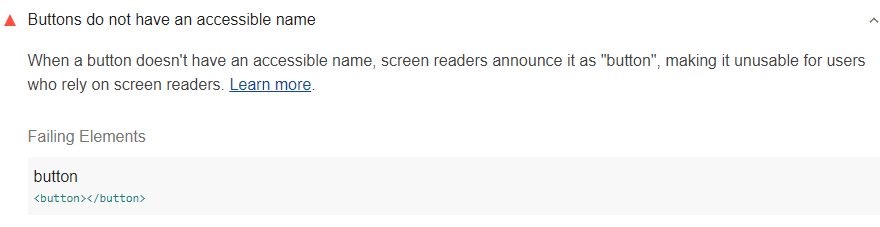
Google Lighthouse flags the button when it does not have an accessible name or aria-label property. Here is an example:

Accessible Names on Buttons

How to pass the accessible button names audit – Adding necessary names

See the HTML source first to have buttons with the visible tag. It is extremely important to check the button elements one by one in the HTML source. You need to add a text for each button element in the HTML source. Don’t forget to use call-to-action language. In cases where plain text needs to be written, you can of course use simpler words, phrases, or instructions. Be careful to have text on each of the buttons. See the example:

<button>Book room</button>

You can also use an aria-label attribute for buttons that have visible elements such as icon buttons. In this way, you will clearly explain the functions of these buttons to screen readers and other assistive technologies.

The appearance of the functions of the buttons will be extremely beneficial for scenarios where the button appears only as of the name because web loading is not performed correctly. In that scenario, the user has a chance to have information about the function and purpose of the button even with a broken page view.

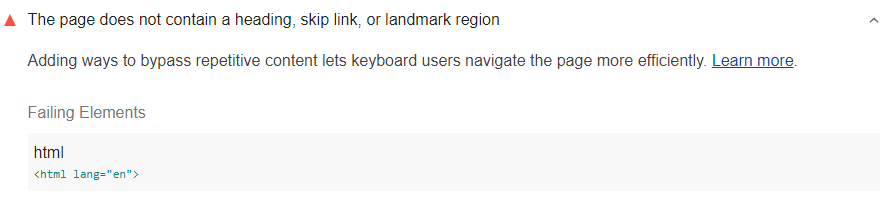
Google Lighthouse flags all the pages without heading, skip link, or landmark region.

No Heading, Skip Link, Or Landmark Region in the Web Page

The system aims to find at least one of the following items while performing this audit:

  1. A <header> element
  2. A skip link
  3. A landmark

How to pass the audit? Improving Keyboard Navigation

To do this, it will be important to add a heading, a skip link, or a landmark to your website. To increase the UX of the user who generally uses the keyboard, do the following:

  1. Make sure all page content is inside the landmark element.
  2. Make sure you have the skip link.
  3. Make sure the landmark is compatible with the content in it.

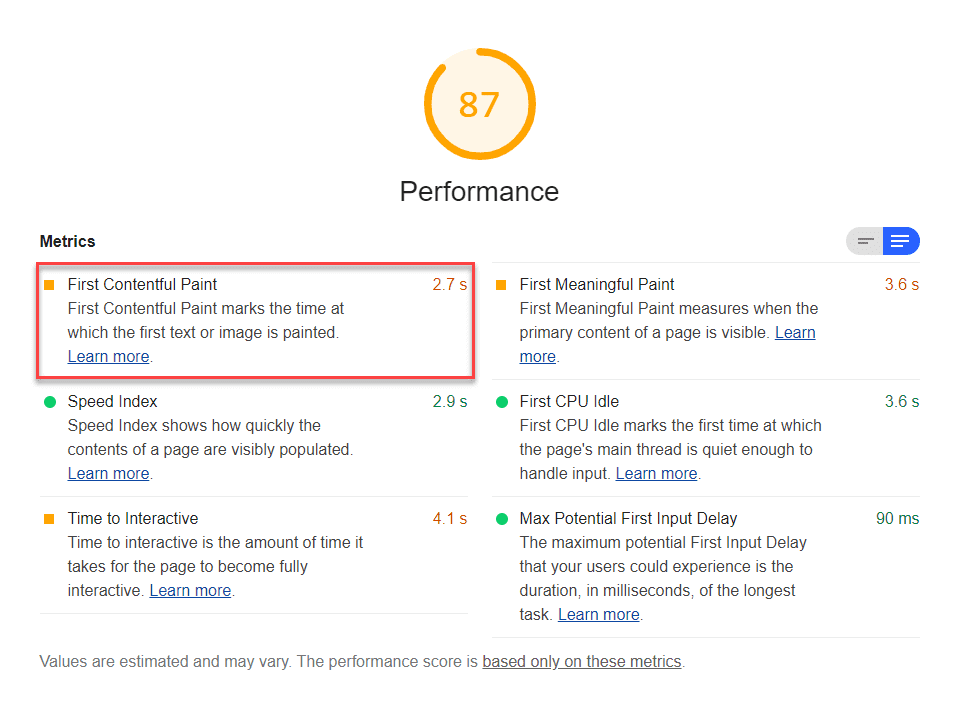
What Does First Contentful Paint Do? 

Let’s start by looking at what First Contentful Paint (FCP), one of Google Lighthouse’s important metrics for measuring web pagespeed, measures. What FCP measures are the speed at which the browser renders DOM content after the user enters your website. In order to measure this speed, analysis is generally performed on images, non-white <canvas> elements, SVGs. These elements are called DOM content. None of the elements in the iframe are included in the analysis process.

What Does Lighthouse do to Determine Your FCP Score? 

To measure the FCP score, the standard score is compared with your web page’s specific score: Your FCP time is compared with the FCP times found based on HTTP archives of other real websites. For example, the FCP generation times of the websites in the 99th percentile are determined to be approximately 1.5 seconds. If your time is 1.5 seconds, your score will be determined as 99.

Here is a sample image from FCP:

First Contentful Paint

Increasing Your FCP Score

If you want to increase your FCP score, you need to improve the font load time. In order to do this acceleration, the text on the web page must continue to be visible throughout the Webfont load. This will increase your FCP score.

Tracking FCP Score

Google’s User-centric Performance Metrics can be extremely helpful in this regard. Here you can find out exactly how many seconds FCP takes place on your website users’ own devices. There is a Tracking FP / FCP section in this metric page of Google. The information here will provide you with the instruction to access data in FCP and transfer the accessed data to Google Analytics.

Increase Your Overall Performance Score Now!

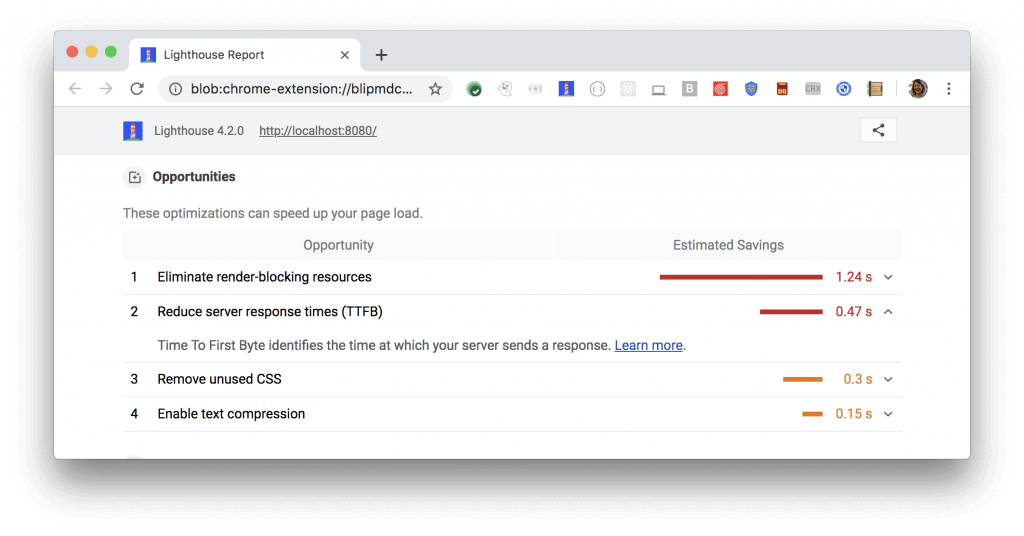
If there is no specific situation that reduces your FCP score, you can choose actions that will increase the performance score in general. For this, you can use Google Lighthouse. You can use the “Opportunities” section here. Choosing and realizing the big opportunities among the ones here means achieving a high momentum on your score. 

Check out the screenshot below. This image shows which errors specifically eliminating will improve the overall score faster:

First Contentful Paint

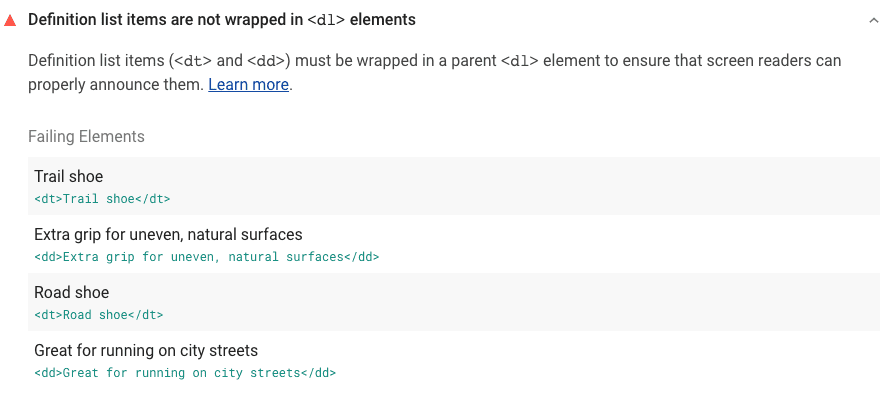
Lighthouse scans definition list elements that <dl> elements do not wrap and then flag them. Like in the example:

<dl> Elements Do Not Wrap Definition List Items

How to pass the audit?

You need to wrap all of the definition list elements using d1 elements. What should be in definition list items:

  1. d1 elements around the list,
  2. dt elements written for each term,
  3. dd elements specified for each definition,
  4. One or more dd elements written for each dt element.

Check out the example for more detailed information:

<dl>
  <dt>Trail shoe</dt>
    <dd>Extra grip for uneven, natural survaces, such as forest trails.</dd>
  <dt>Road shoe</dt>
    <dd>Extra cushioning for hard surfaces, such as sidewalks and roads.</dd>
</dl>

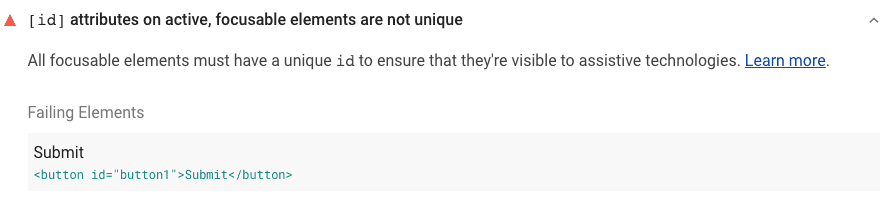
Google Lighthouse performs the flagging of elements that have duplicate IDs

Attributes on Active and Focusable Elements

Determinin whether an element is focusable or not: If the user can navigate it using the Tab key, this element is functional. Generally, the list of elements that are focusable for different browsers may vary. However, we will provide you with a general list.

  • <a>
  • <area>
  • <audio controls>
  • <button>
  • <iframe>
  • <input>
  • <select>
  • <summary>
  • <textarea>
  • <video controls>
  • All of the elements with contentEditable attribute
  • All of the elements with a tabindex set to a numeric value other than -1

How to pass the duplicate ID audit? 

To pass the duplicate ID audit you need to replace at least one of the elements using the same ID. Check out the example below:

<input type="radio" id="huey" name="newphews" value="Huey" checked>
<input type="radio" id="huey" name="newphews" value="Dewey" checked>
<input type="radio" id="louie" name="newphews" value="Louie" checked>

Google Lighthouse finds and flags duplicated ARIA IDs.

Duplicated ARIA ID Number Problem on the Web Page

How to pass the audit? – Fixing Duplicate Ids

At least one of the IDs used twice will definitely need to be changed. For example, in the code below, the ID named <h2 id = "tabpanel-label"> is used twice. One has to change.

<div role="tabpanel" aria-labelledby="tabpanel-label">
  <h2 id="tabpanel-label">
    Tab panel title
  </h2>
  <p id="tabpanel-label">
    Lorem ipsum dolor sit amet, consectetur adipiscing elit,
    sed do eiusmod tempor incididunt ut labore et dolore magna aliqua.
  </p>
</div>

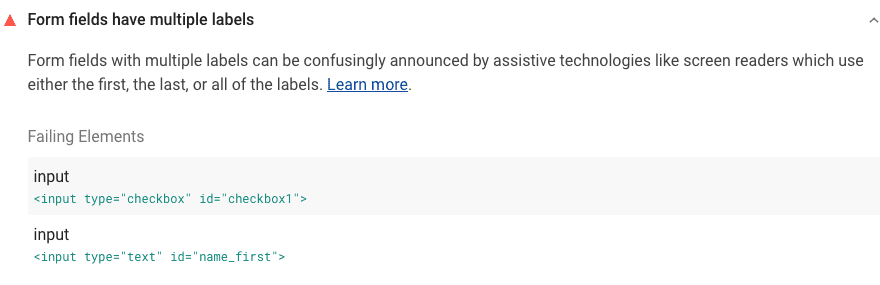
When Lighthouse sees a form field with multiple labels, it flags it.

There are Multiple Labels in Form Fields

How to pass the audit? – Removing Duplicate Form Labels 

  • If you wish, you can choose the <label> element to be the parent of the form element.
<label>Label for checkbox
  <input type="checkbox" id="checkbox1" />
</label>
  • Also, you can use an attribute to make a direct association with the form element of the label element. for an attribute will be appropriate for this.
<label for="checkbox1">Label for checkbox</label>
<input type="checkbox" id="checkbox1" />
  • You can also use the aria-labelledby attribute if you wish. In this way, you will be connecting the form and a different separate element. You will need to use the ID of this element for this.
<p id="checkbox1_label">Label for checkbox</p>
<input type="checkbox" id="checkbox1" aria-labelledby="checkbox1_label" />

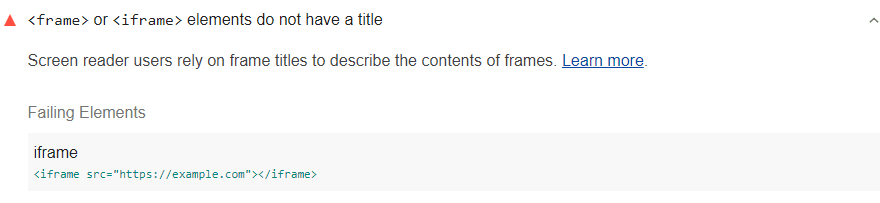
Google Lighthouse scans, finds and flags <frame> and <iframe> elements that do not have a title.

No <frame> or <iframe> elements with title

How to pass the audit?  – Adding Titles to Frames and iFrames

For each frame and iframe element, you need to specify a completely specific, descriptive, and unique title. It is also correct to assign a title attribute that is exactly the same as the title you gave to a frame element.

<iframe title="My Daily Marathon Tracker" src="https://www.mydailymarathontracker.com/"></iframe>

How to Choose the Right Title for Frame and iFrame?

  1. You need to make sure that the title attribute and title are exactly the same.
  2. Make sure the titles are not alike and completely original.

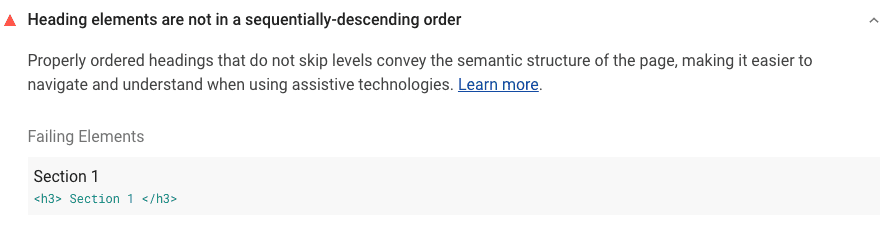
The Google Lighthouse system determines the headings that do not have a sequentially-descending order and that skip to one or more levels and then flag them. As follows:

No sequentially-descending order for heading elements

What could cause this problem?

  1. When you use the <h1> tag in any content on your web page, the system treats it as your core header. Using your main header as <h3> in another content will be problematic.
  2. Using <h3> without using <h2> after the title with the <h1> tag in a content will cause problems. Screen readers will think that a section has been skipped within the page and therefore the page is inefficient. This may cause the audit to fail and alert you.
<h1>Page title</h1>
  <h3>Section heading 1</h3>
  …
  <h3>Section heading 2</h3>
  …

How to pass the audit? – Fixing Wrong Heading Structure 

It is extremely important to correct the heading structure that has not been created correctly. For this, follow the methods below:

  1. You should make sure that the headings in the content have a numerically and logically correct order. To do this, you have to go through all the topics.
  2. It is also extremely important that a heading matches the meaning of the text used. That is, the heading must the keywords or semantic meanings that can be linked to the content in question. 
<h1>Page title</h1>
<section>
  <h2>Section Heading</h2>
  …
    <h3>Sub-section Heading</h3>
</section>

For example, if you want to check whether a heading has the correct structure, you can ask yourself the following question: 

‘’When an individual enters my website and sees this title and clicks on the content in question, will the article he or she encounters match the title? Will the content make sense to him or her or will he or she will find awkward the content is doing here? ”

Your answer to this question will help you create content with more accurate technical and semantic features.

Creating an SEO-Friendly Header for your Contents on the Web Page

You can use a call-to-action title structure to match the title with other SEO criteria, and after analyzing your target audience, you can create exciting titles that will push them to read the content without clicking-bait. For this, you need to work with strong content writers.

Google Lighthouse finds HTML codes that do not contain the [lang] attribute in a detailed scan result and flags them.

No Specified [lang] Attribute in HTML

How to pass the audit? – Adding HTML Lang Attribute to the Website

To solve the problem, just add the HTML lang attribute to the relevant part of your website. Check the language code used if it has already been added. If it has a non-valid code, this may have caused the problem. Here is an example of the HTML element with the correct code (It is coded to be pronounced in English):

<html lang="en">

Google Lighthouse finds such an error as a result of a scan and immediately flags the HTML element with an invalid value. The audit is as follows:

The [lang] Attribute of the <html> Element is not Valid

How To Pass the Invalid Lang Attribution Audit in HTML?

If you want to fix an invalid attribute inside the HTML element, take a look at the valid language code list. Find the language you want to specify in the HTML world and write it here. In this way, a correct pronunciation will be provided.

If you want to find out the right language tag for you, then click here

Google Lighthouse scans your web page and marks images without alt text. In this way, you can easily follow them.

No [alt] text in the <input type="image"> elements

How to pass the ” no alt text for image input ” audit?

To fix this problem, you need to go to the HTML source. You need to add sub-attributes for <input type = "image"> code snippets you see in this resource. Also, what action will happen when the user clicks on the alt text? Find the answer to this question. The alt text should explain exactly that.

How to write alt text for image input?

  1. You need to specify the action that will occur when the user clicks the button.
  2. The alt text should indicate a purpose related to the image.
  3. Alt text should not contain non-specific words. For example, do not use the word “chart” in the alt text. Use a more specific definition.

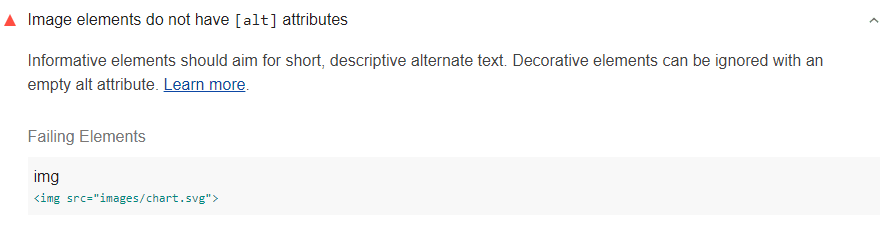
The Google Lighthouse system easily detects an image element with no alt text on your website. After this process, this element will be flagged. In this way, you can see it easily. Here is an image of the audit:

alt Attributes in Images

How to pass the audit: Adding Alternative Text to Images

It is necessary to add an alternative text to each image element to pass the audit. In this way, even if the image has a problem loading on the site, the alt text that will appear will provide users with detailed information about what the image is about.

The alternative text of image element has should be extremely short. Don’t write a long sentence here. What you have to do is use a hashtag-like phrase that explains what the image is about. You can also use underscores in the phrase.

Here is an example of an img element with alt text added:

<img alt="Audits set-up in Chrome DevTools" src="...">

Sometimes, images don’t have a clear purpose. Since the images used for decorative purposes do not have a function, you can leave their alt text empty. In this case, the text will appear as “” in HTML. By doing this, you will remove the image in question from the accessibility tree. Here is an example for this: 

<img src="background.png" alt="">

How to create an alt text for img element?

You can create alt text for an img element by taking care of the following tips: 

  1. What alt text does is to briefly state the purpose and function of the image.
  2. In addition, blind users should only be able to understand what the image is about through text. So you need to create a text that gives both simple and comprehensive information.
  3. Finally, avoid non-specific words that can be used for almost any image. For example, do not write words such as ” image ”, ” chart ”, ” diagram ” in the bottom text.

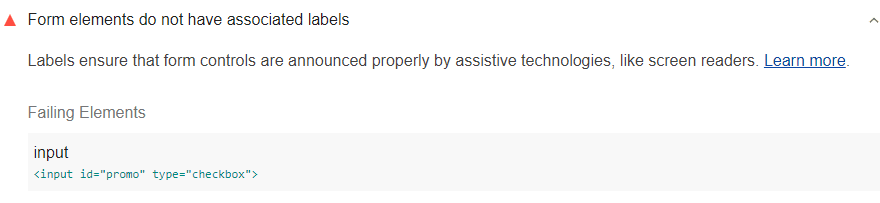
Google Lighthouse determines and flags the form elements that do not have an associated label. This audit alert is as follows:

Associated Labels in Form Elements

How to pass the audit? – Adding Labels to Forms

You can do this in two different ways:

  • First of all, it makes sense to add an input element into the label element on the HTML source page. Check the example: 
<label>
  Receive promotional offers?
  <input type="checkbox">
</label>
  • You can use for attribute for the labels. This will help you to refer to the form element’s ID. Here is an example: 
<input id="promo" type="checkbox">
<label for="promo">Receive promotional offers?</label>

When the problematic pages with the browser zooming are detected, Lighthouse flags the pages.

[maximum-scale] attribute is less than 5

In order for the audit fail to occur, a page must contain <meta name = “viewport”> with one of the elements below.

  1. user-scalable = a content attribute with "no" parameter, or
  2. A content attribute with a maximum-scale parameter’s value less than 5

How to pass the audit? 

What you have to do is come to the viewpoint metatag. Then remove the user-scalable = "no" parameter here. Also, after your check, you need to make sure that the parameter called maximum-scale is fixed to a value of 5 or more.

Google Lighthouse system determines the elements that do not contain alternative texts. <object> elements missing in this topic are flagged by the system.

No [alt] Text for <object> Elements

How to pass the audit: Adding alternative text to  <object> elements?

There must be text content inside the <object> element. But if there is no such content, you must describe it. In the photo below, the section named 2019 Web Accessibility Report is known as the description of the specified object. Here is the example below:

<object type="application/pdf"
    data="/report.pdf"
    width="600"
    height="400">
2019 Web Accessibility Report
</object>

How to write effective alt text?

  1. The prepared alternative text must necessarily represent the object in question.
  2. The main purpose of the alternative text is to explain the purpose of the object in question.
  3. You should completely avoid “chart”, “image”, or “diagram” words that do not help you directly describe the object you created.

Google Lighthouse finds all elements with a tab index value higher than 0 with a detailed scan and flags them. It then gives you a warning about these values.

[tabindex] value greater than 0

How to pass audit? Fix the problematic (above 0) tabindex values on the website

You need to remove the tabindex to discover and solve the points where the tabindex value is greater than 0

Then use HTML elements to solve the problem. For example, you can use HTML elements <button> or <input>. In this way, you will have a higher performance in terms of keyboard accessibility. Moreover, it is a completely free solution. 

Also, if you are using custom interactive components on your website, you can set tabindex to 0. Like in the image below:

<div tabindex="0">Focus me with the TAB key</div>

If you want to change the tab order of an item, you need to change the location of it. To do this, make a change to the DOM. Click here to check other errors with Tabindex.

If there is a table with more than one header for a column, Lighthouse finds and reports it with a detailed scan operation.

<headers> cells attribute

How can data cells with no header match be corrected?

Note that each data cell found must be a table header cell aligned.

For example, the table below is problematic:

<table>
  <caption><strong>My marathon training log</strong></caption>
  <thead>
    <tr>
      <th>Week</th>
      <th>Total miles</th>
      <th>Longest run</th>
      <th>Long run pace</th>
    </tr>
  </thead>

  <tbody>
    <tr>
      <th headers="Week">1</th>
      <td>14</td>
      <td>5</td>
      <td>12.30</td>
    </tr>

    <tr>
      <th>1</th>
      <td>16</td>
      <td>6</td>
      <td>12.15</td>
    </tr>

  </tbody>

</table>

Here are what you have to do to fix this coding: 

  1. Remove headers = '' Week '' from this table.
  2. Add "Scope".
  3. Add the <td> code snippet in first row too

Here the correct version of the coding:

<table>
  <caption>My marathon training log</caption>
  <thead>
    <tr>
      <th scope="col">Week</th>
      <th scope="col">Total miles</th>
      <th scope="col">Longest run</th>
      <th scope="col">Long run pace</th>
    </tr>
  </thead>

  <tbody>
    <tr>
      <th scope="row">1</th>
      <td>14</td>
      <td>5</td>
      <td>12.30</td>
    </tr>

    <tr>
      <th scope="row">1</th>
      <td>16</td>
      <td>6</td>
      <td>12.15</td>
    </tr>

  </tbody>

</table>

Google Lighthouse, reports <th> elements and elements with [role = "columnheader" / "rowheader"] that does not address enough data cells and therefore lowers the user experience.

How to pass data cell audits? 

Let’s go through the example. For example, the table below contains a table header column. But there is no table data set that this refers to. In that coding, the header column represents “Marathon pace”.

<table>
  <caption>My marathon training log</caption>
  <thead>
    <tr>
      <th scope="col">Week</th>
      <th scope="col">Total miles</th>
      <th scope="col">Longest run</th>
      <th scope="col">Marathon pace</th>
    </tr>
  </thead>
  <tbody>
    <tr>
      <th scope="row">1</th>
      <td>14</td>
      <td>5</td>
    </tr>
    <tr>
      <th scope="row">2</th>
      <td>16</td>
      <td>6</td>
    </tr>
  </tbody>
</table>

Fixing this is possible by having a table data cell in the rest of the code. It is ‘’Marathon pace’’.

<table>
  <caption>My marathon training log</caption>
  <thead>
    <tr>
      <th scope="col">Week</th>
      <th scope="col">Total miles</th>
      <th scope="col">Longest run</th>
      <th scope="col">Marathon pace</th>
    </tr>
  </thead>
  <tbody>
    <tr>
      <th scope="row">1</th>
      <td>14</td>
      <td>5</td>
      <td>4:45:00</td>
    </tr>
    <tr>
      <th scope="row">2</th>
      <td>16</td>
      <td>6</td>
      <td>4:33:00</td>
    </tr>
  </tbody>
</table>

If any page on your website does not have HTTPS, Google Lighthouse will scan this page, find it and report it to you after flagging. This report will look like this:

So, how does it go? The Google Lighthouse system waits for an event through the Chrome Remote Debugging Protocol system to do this. The event in question should indicate that the page continues to serve over a completely secure network. If such an event is not received by Lighthouse in about ten seconds, HTTPS audit fails.

Passing HTTPS Audit: Migrating the page to HTTPS

After receiving the alert, take the following steps immediately to maximize user security:

You can review using CDN as hosting. Most CDN systems are extremely secure even by default.

Click here to enable the HTTPS system to work actively in the server. On this link, Google has a specific content about HTTPS activation. If you don’t want to allocate a high budget to run HTTPS, you can try using Let’s Encrypt.

What if you have HTTPS on that page? 

If there is HTTPS on the page of your website but the system continues to alert you, the source of your problem may be different. Mixed content can often cause such a problem. If a page has mixed content while loading over HTTPS, it can request an unprotected resource, which can lead to some security problems and an audit alert. You can click here for the content that suggests additional instructions for solving such situations as well.

To solve this kind of problem, it is often necessary to add rel="noopener" or rel="noreferrer" to HTML. The addition should be done to the target="_ blank" links. In this way, this problem can be eliminated.

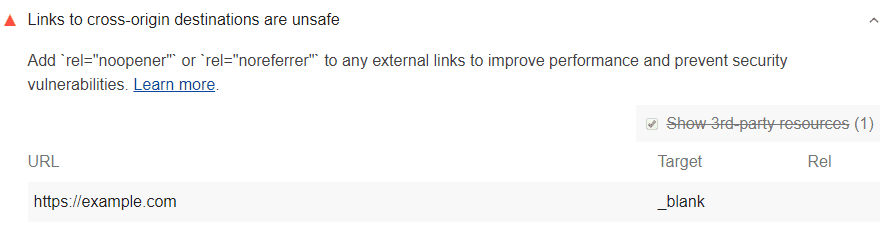
When a problem is discovered in the scanning studies of the Google Lighthouse system, the system gives you a warning about it:

Unsafe links to the cross-origin destinations

To discover that a link can cause unsafe situations, Lighthouse takes the following actions or processes:

  1. First, Lighthouse looks at the <a> tags in the system. Among them, options where the target="_ blank" attribute is located are gathered. Those with the rel="noopener" or rel="noreferrer" attributes are not included in gathering.
  2. All codes with the same-host link are filtered.

If you are working for a large website, you may have a problem filtering same-host links. If a page has a target="_ blank" link that goes to another page, it needs to use rel="noopener". If it does not use that, Lighthouse may not be able to scan it while performing the audit.

How to prevent security vulnerabilities? 

You need to add code snippets to all the links that the Lighthouse system offers you as a warning. Adding rel="noopener" or rel="noreferrer" will fix the problem. In general, the place you need to add will be target="_ blank".

<a href="https://examplepetstore.com" target="_blank" rel="noopener">
  Example Pet Store
</a>
  1. The main thing the rel="noopener" code snippet does is to prevent the other site from creating a security vulnerability on your site via the malicious URL. For this, access to window.opener is blocked.
  2. rel="noreferrer" does a similar action. Also, it prevents the system from sending the ‘’Referrer’’ header to a new page.